AdeptWizPDF – Product User Guide & How-To-Use Manual
This guide provides step-by-step instructions for using AdeptWizPDF to manage, convert, edit, sign, optimize, and protect your PDF documents.
Quick Start Guide
Navigation and Search
- Home Dashboard: Access all 21 PDF tools organized by category.
- Search Bar: Type keywords such as “merge”, “password”, “excel”, or “signature” to instantly filter tools.
- Category Tabs: Select categories such as All, Organize, Optimize, Convert To, Convert From, Edit & Sign, or Security.
- Favorites: Click the star icon on any tool card to save it for quick access.
- Theme Toggle: Switch between dark and light mode from the top navigation bar.
Step-by-Step Instructions by Tool Category
1. Organize and Page Management Tools
Merge PDFs
- Open the Merge PDF tool.
- Drag and drop multiple PDF files or click Browse Files.
- Reorder files by dragging them in the list.
- Click Merge PDFs Now.
- Download the merged PDF or preview it in the viewer.
Split PDF
- Open the Split PDF tool and upload your document.
- Choose Extract All Pages or enter a Custom Range.
- Click Split PDF.
- Download the split file or all pages as a ZIP archive.
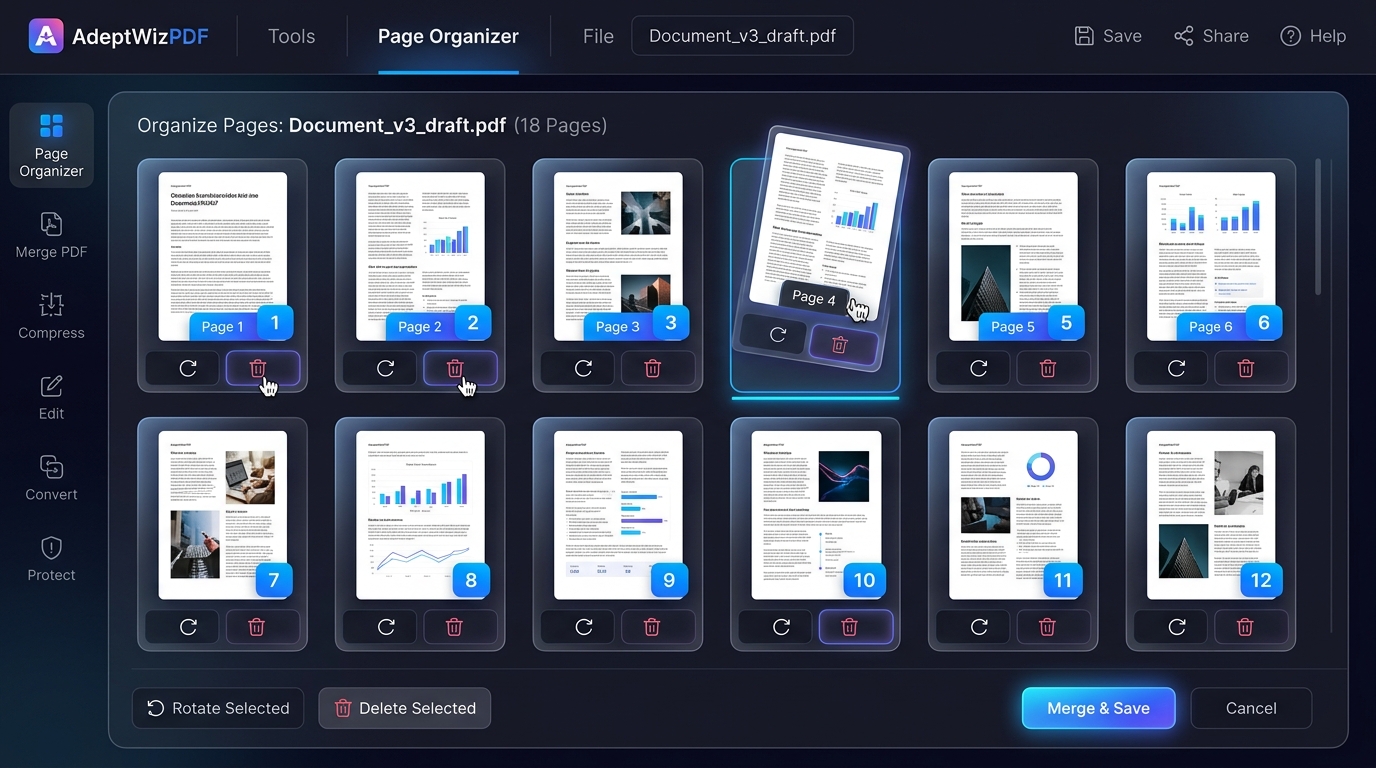
Organize PDF Pages
- Open Organize PDF and upload your document.
- Use the thumbnail grid to reorder, rotate, or delete pages.
- Click Save Organized PDF.
Rotate PDF
- Upload your document to Rotate PDF.
- Select the rotation angle.
- Apply rotation to all pages or selected pages.
- Click Rotate and Download.
Crop PDF
- Upload your document to Crop PDF.
- Adjust the crop box by dragging the handles.
- Apply the crop to one page or all pages.
- Click Apply Crop and Download.
2. Optimize and AI Tools
Compress PDF
- Upload your document to Compress PDF.
- Select a compression level: Extreme, Recommended, or Less.
- Click Compress PDF.
- Review the size reduction and download the compressed file.
OCR PDF – Text Recognition
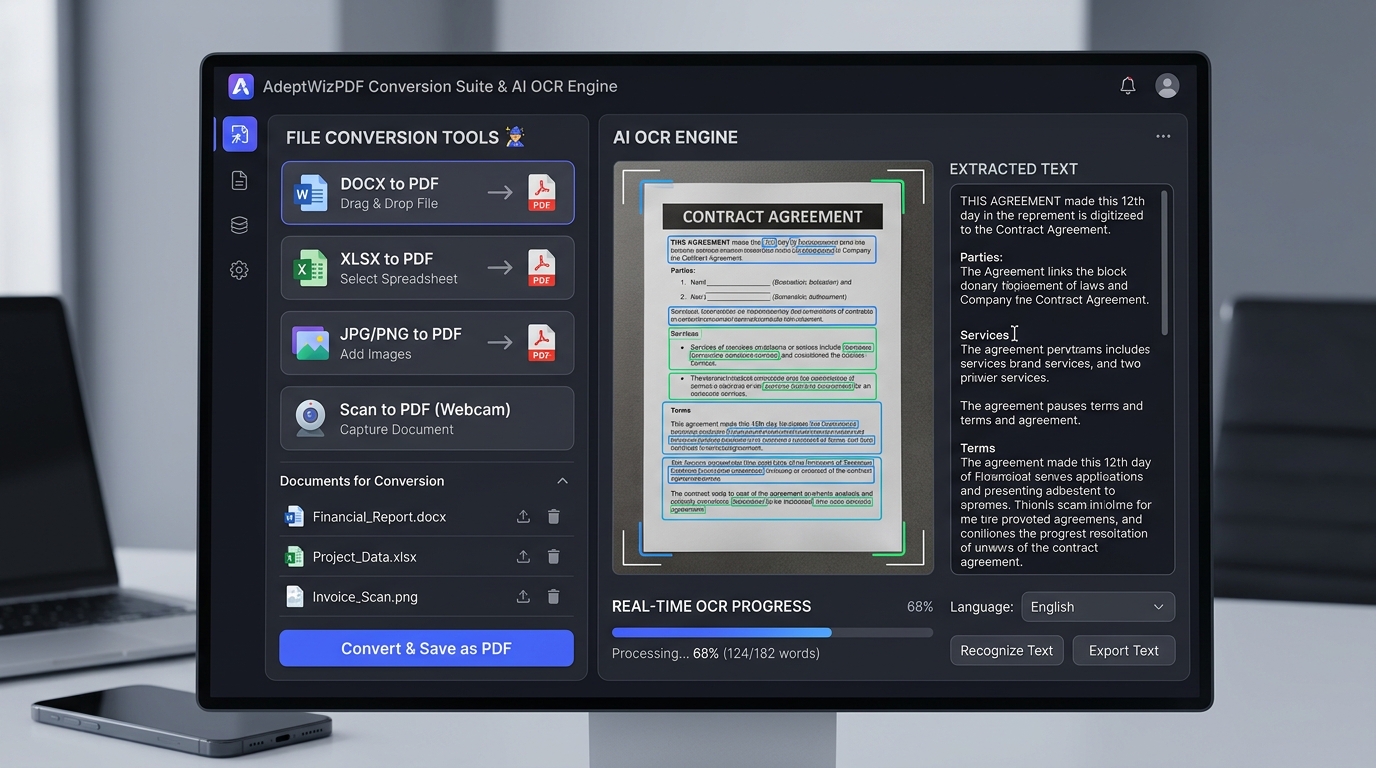
- Upload a scanned PDF or image-based document.
- Select the document language.
- Click Run OCR Text Recognition.
- Download a searchable PDF or copy extracted text.
3. Convert Files to PDF
JPG or PNG to PDF
- Open JPG to PDF.
- Upload one or multiple images.
- Reorder images if needed.
- Adjust orientation and margins.
- Click Convert to PDF.
Word to PDF
- Open Word to PDF.
- Upload a DOCX or DOC file.
- Click Download PDF.
Excel to PDF
- Open Excel to PDF.
- Upload an XLSX or XLS file.
- Click Download PDF.
Text or Markdown to PDF
- Open Text to PDF.
- Upload a TXT or MD file or paste text.
- Select font and formatting options.
- Click Generate PDF.
HTML to PDF
- Open HTML to PDF.
- Upload an HTML file or paste HTML code.
- Click Render to PDF.
Scan to PDF
- Open Scan to PDF.
- Allow camera access.
- Capture one or multiple pages.
- Apply filters if needed.
- Click Generate Scanned PDF.
4. Convert PDF to Other Formats
PDF to JPG or PNG
- Upload your document to PDF to JPG.
- Select JPG or PNG format.
- Choose resolution quality.
- Click Convert Pages to Images.
- Download individual images or a ZIP archive.
PDF to Text
- Upload your document to PDF to Text.
- Click Extract Text.
- Copy the text or download a TXT file.
5. Edit, Sign, and Annotate
Edit PDF
- Upload your document to Edit PDF.
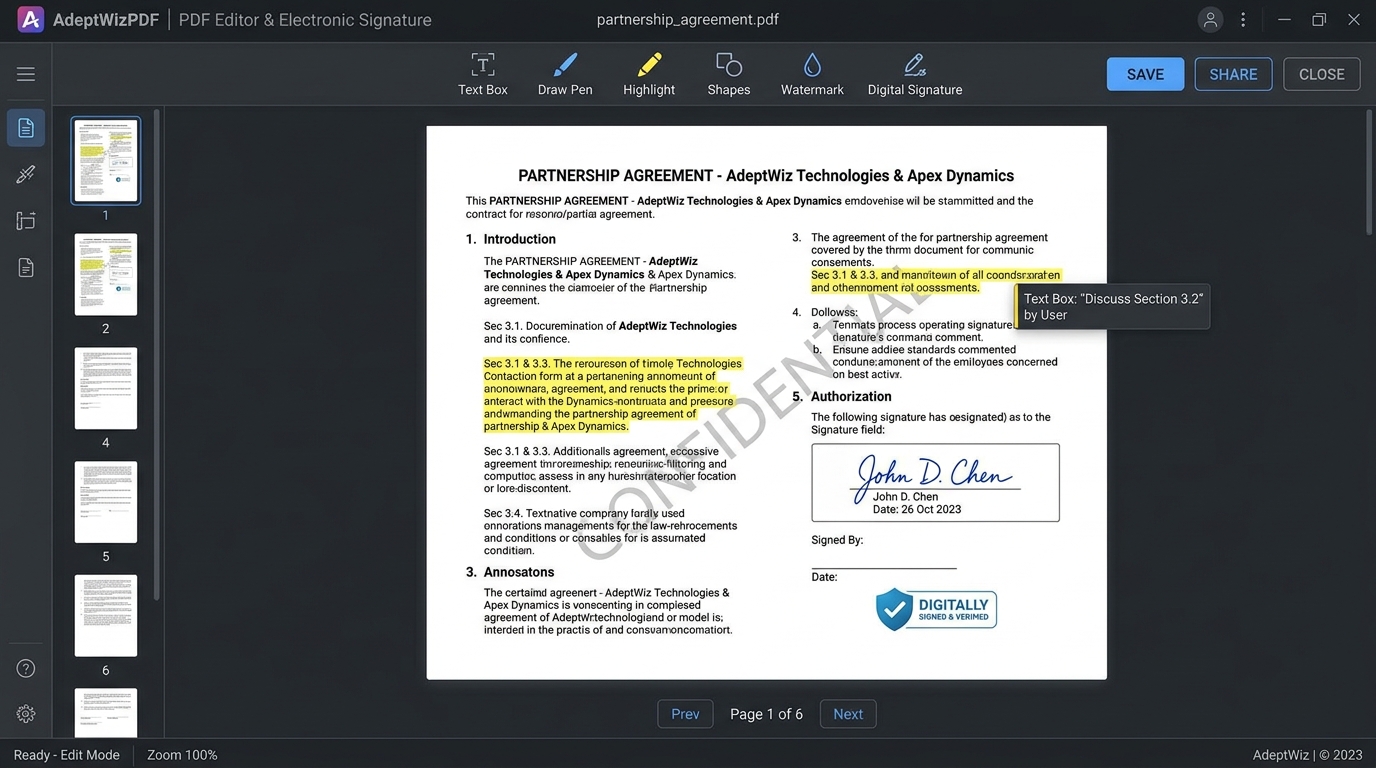
- Use tools such as Text, Pen, Shapes, Highlight, or Redact.
- Click Save Edited PDF.
Sign PDF
- Upload your document to Sign PDF.
- Choose Draw, Type, or Upload Signature.
- Place and resize the signature.
- Click Apply Signature and Download.
Watermark PDF
- Upload your document to Watermark PDF.
- Choose Text or Image watermark.
- Adjust opacity, rotation, and placement.
- Click Apply Watermark.
Add Page Numbers
- Upload your document to Page Numbers.
- Select a numbering format.
- Choose placement and margins.
- Click Add Page Numbers and Save.
6. Protect and Security Tools
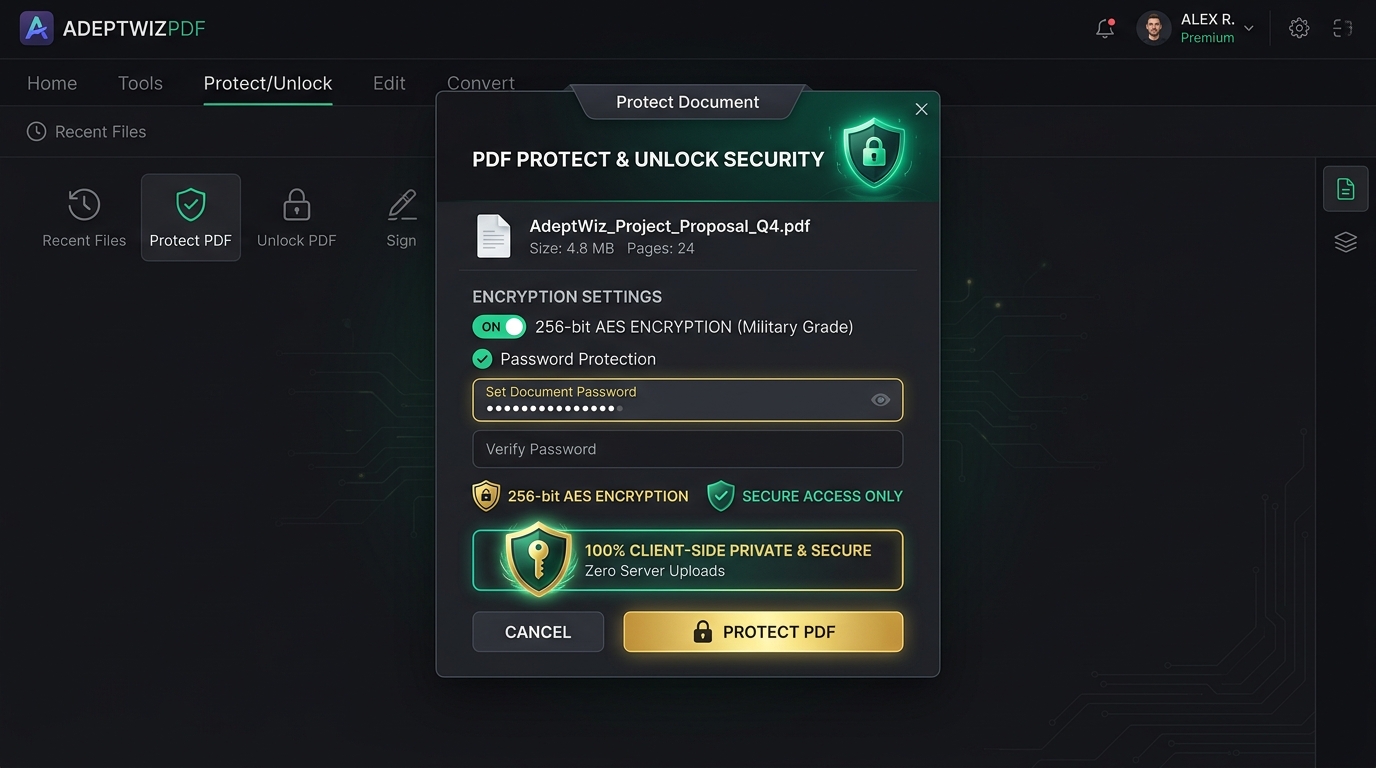
Protect PDF
- Upload your document to Protect PDF.
- Enter and confirm a password.
- Click Encrypt and Protect PDF.
- Download the encrypted file.
Unlock PDF
- Upload a password-protected PDF.
- Enter the correct password.
- Click Unlock Document.
- Download the decrypted file.
Built-In Features
PDF Viewer
Use the Preview PDF option to inspect your processed document before downloading.
Session History
Open the History menu to view recently processed files and re-download them.
Frequently Asked Questions
Is my data safe?
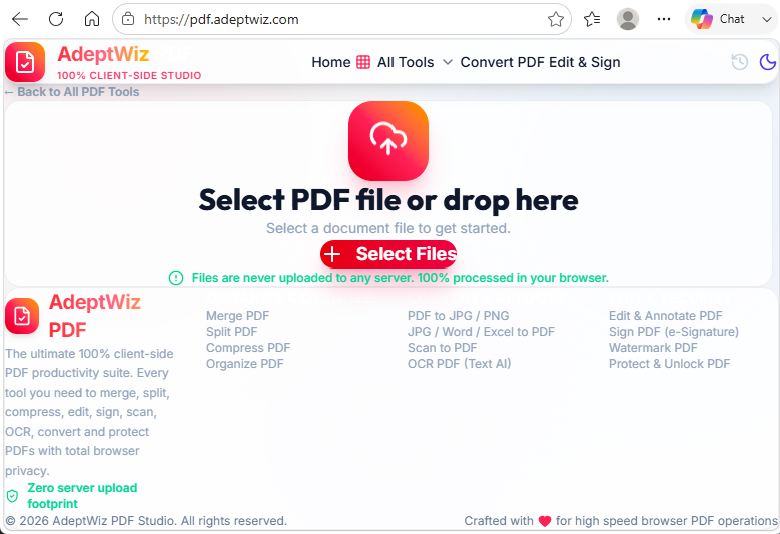
Yes. AdeptWizPDF runs entirely inside your browser. No files are uploaded to any server.
Does AdeptWizPDF work offline?
Yes. Once loaded, all tools work without an internet connection.
Are there file size limits?
Limits depend on your device’s memory. Most standard documents process quickly and without issues.
Leave a Reply
You must be logged in to post a comment.